












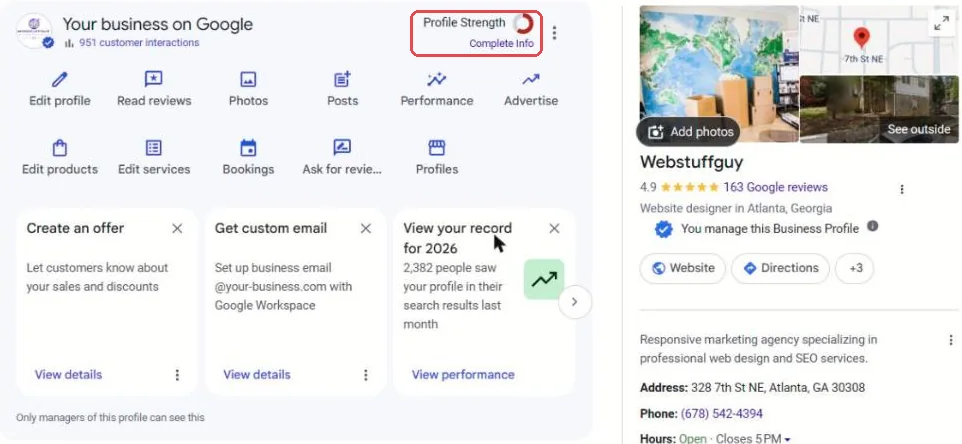
Your Google Business Profile is the listing that shows up in Google Maps and in the box beside your search results: your name, stars, hours, phone number, photos and the “Directions” button. For a lot of local businesses it gets more eyes than the website does.
Here is the pattern we see over and over, after almost two decades of doing this for clients. An owner sits down one evening, spends an hour filling the profile out, and never opens it again. Not to add a new service, not to remove one they stopped offering, not to check whether Google changed anything. And Google does change things. When we went through our own profile to take the screenshots for this guide, Google had edited five separate details on its own.
Nobody can blame an owner for that. The dashboard is crowded, the options keep moving, and running the business comes first. This Google Business Profile optimization guide is meant to make it less intimidating. It’s written for any local business, wherever you are, from a one-truck plumber to a multi-chair dental office. It walks through every section in plain language, links each one to what Google itself says about it, and points out the settings owners most often miss. You don’t have to read it top to bottom. Jump to the section you need.
Who this is for: business owners who already have a verified profile and can sign in to it as an owner or manager. If someone else set yours up years ago and you can’t get in, start with Keep control of your profile.
1. How to find and edit your Google Business Profile
If you remember a separate Google My Business app or website, that’s gone. Here’s how to find your Google Business Profile and edit it today. For a single location, you manage everything from Google itself:
- On a computer: sign in to the Google account that owns the profile, then search for your business name on Google. The “Your business on Google” panel appears at the top of the results. Going to business.google.com takes you to the same place.
- On a phone: in the Google Maps app, tap Business, then Edit profile, or search your business name in the Google app.
The panel gives you buttons for Edit profile, Read reviews, Photos, Posts, Performance, Edit services and more. The three-dot menu beside Profile Strength holds the settings most people never find: Business Profile settings (who has access) and Notifications (which emails you get). Google’s overview of every editable section is on its Edit your Business Profile help page.
Agencies and multi-location brands still use the older Business Profile Manager list view at business.google.com/locations for managing many profiles at once. If you have one location, you can ignore it.
The Profile Strength meter
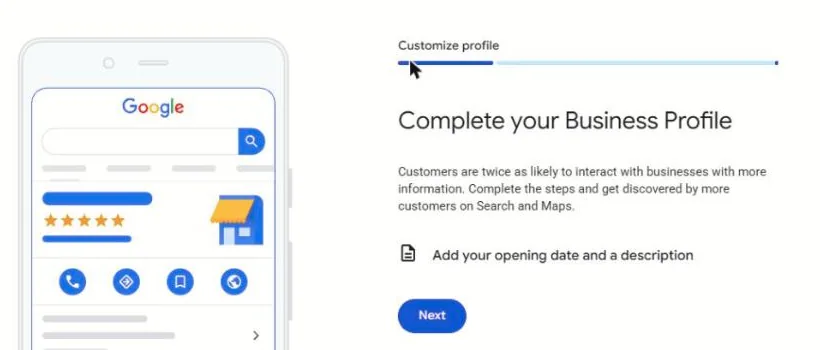
The ring next to Profile Strength is Google nudging you toward a complete profile. Click Complete Info and it walks you through whatever it thinks is missing. On our profile it asked for an opening date and a description. It’s a reasonable starting point, but a full ring doesn’t mean a well-optimized profile. It only means the boxes have something in them.
2. How Google ranks businesses on Maps
Before changing settings, it helps to know what you’re optimizing for. Google says local results, meaning the map and the three businesses under it, are decided mainly by three things (Google’s local ranking tips):
- Relevance: how well your profile matches what someone searched. This is where your categories, services and description do their work, and it’s the part you control most.
- Distance: how far you are from the searcher, or from the place they named. A plumber across town won’t usually show for a search made on the other side of the city, however good the profile is.
- Prominence: how well known you are: reviews and ratings, links and mentions across the web, and how established your business is.
Google is also clear that you can’t pay to rank higher on Maps, and that keeping your information complete and accurate helps. Nearly every section below feeds relevance or prominence, so how to rank higher on Google Maps mostly comes down to doing the boring parts thoroughly and keeping them current.
3. Google Business Profile updates: check what Google changed
This is the section we’d most like every owner to read, because almost nobody knows about it.
Google doesn’t only show what you typed in. It also pulls information from your website, from other sites that mention you, and from the public through “Suggest an edit”. Sometimes it updates your profile on its own. Google explains this on its Understand Google updates on your Business Profile page. Changed information shows in blue in the editor, with a notice above it.
When we opened Edit profile on our own listing for this guide, there were five of these notices:
- “Your opening date was updated by Google.”
- “Your messaging options were updated by Google.”
- “Your social media profile was updated by Google.”
- “Your attributes were updated by Google,” twice: once for accessibility, once for amenities.
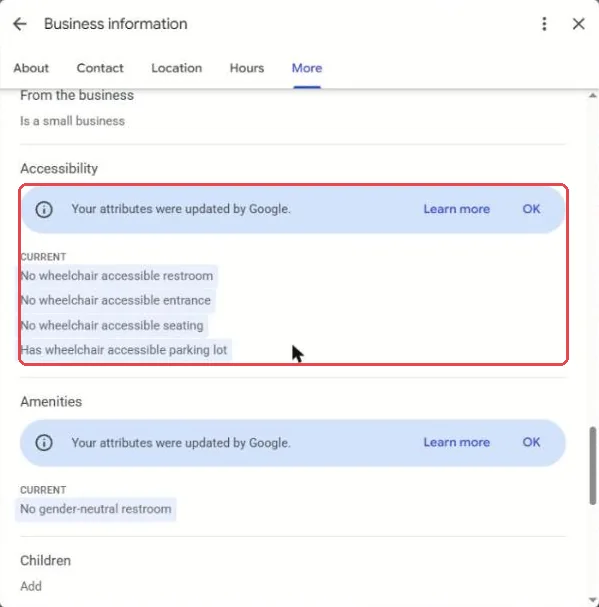
Some of Google’s changes are harmless or even helpful. Some are wrong. A wrong phone number, closing time or “not wheelchair accessible” costs you customers, and you won’t know it’s there unless you look.
Suggested edits from the public
Anyone can suggest an edit to a business on Google Maps, including competitors. Google’s help page says that when a suggestion needs your review, you may get an email or an in-product notification, and you have 4 days to accept or reject it. If you don’t respond, Google may publish it anyway when other public information supports it. That’s another reason to sign in regularly. See Google’s page on updates and edits.
What to do
- Open Edit profile and click through every tab: About, Contact, Location, Hours, More. Look for the blue “updated by Google” notices.
- If the new information is correct, leave it.
- If it’s wrong, edit that field back to the correct value and save. Your edit goes through Google’s review like any other.
- Repeat monthly. It takes five minutes and is the single best habit in this guide.
Don’t want to check every month? Watching profiles for unwanted changes is part of our Google Business Profile management.
See how we help4. Business name
Your name on Google should be your real-world name: what’s on your sign, your website and your invoices. Nothing else. Google’s guidelines for representing your business are strict about this.
Don’t add keywords (“Smith Plumbing – Best Emergency Plumber Near Me”), city names that aren’t part of your name, taglines, phone numbers or URLs. It’s tempting because it can work for a while, but it’s the most common reason we see profiles get suspended. Competitors report it, too.
Be careful editing it. Changing the name of an established profile can send it back through verification. If you’ve genuinely rebranded, change it, but expect Google to check, and update your signage and website first so they match.
5. Google Business Profile categories: the setting most owners ignore
Categories tell Google what kind of business you are, and they matter more to which searches you show up for than almost anything else you control. Google explains them on its business category help page.
- Primary category: one, and it should describe what you are, as specifically as the list allows. “Personal injury attorney” beats “Lawyer”. “Emergency veterinarian hospital” beats “Veterinarian” if that’s what you are.
- Additional categories: Google allows several more. Add the ones that describe other things you genuinely are or do, not every keyword you’d like to rank for.
What owners miss: most profiles we audit have only the one category they picked during setup. Additional categories also unlock extra suggested services in the Services section, so adding the right ones does double duty.
Google adds and retires categories regularly. Search the list again once a year. There may be a better match for you now than when you signed up.
Change the primary category carefully. Like the name, a big change can trigger re-verification.
6. Business description
You get up to 750 characters to describe your business in your own words. Google’s rules: no links, no HTML, and keep it about your business rather than promotions, prices or sales (source).
A good description covers, in normal sentences:
- what you do and who it’s for
- the main services, in the words customers use
- where you work (neighborhoods, cities)
- what makes you different: years in business, credentials, specialties
Put your most important point in the first 250 characters or so. That’s often all a customer sees before tapping “more”.
Google can now write one for you. In some regions, the description field has a Suggest description button that drafts one with AI (Google’s page). Google’s own help text says to review it for accuracy before using it, and we agree. More on that in Can AI fill this in for you?
7. Address, map pin and service area
How you fill this in depends on whether customers come to you.
- Storefront (customers visit: shops, offices, restaurants): show your address and check that the map pin sits on your actual front door, not the middle of the block. Google’s address page covers the rules: no P.O. boxes, and no virtual offices you don’t actually staff.
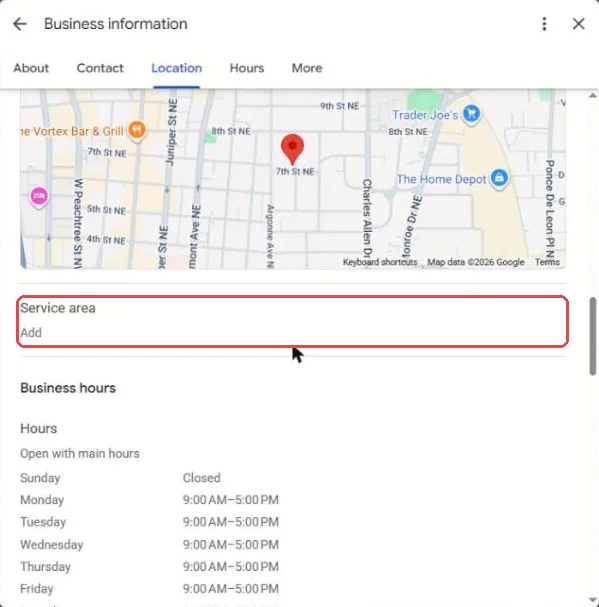
- Service-area business (you go to customers: plumbers, cleaners, mobile services): hide the address and set a service area instead.
- Both (a shop that also does on-site work): show the address and add a service area.
Service area
Google lets you list up to 20 areas, by city or ZIP code, and says the whole area shouldn’t reach beyond about two hours’ drive from your base (Google’s service area page). List the places you really serve. A house-cleaning company might list the six or eight towns its crews actually drive to each week; a roofer might list the county seat and the suburbs around it. Listing whole states doesn’t widen your reach on Maps.
Moving? Update the address on the existing profile rather than making a new one. That keeps your reviews. Moving usually means verifying again.
8. Hours: regular, special and “more hours”
Wrong hours are the fastest way to lose a customer who trusted Google and drove over. There are three kinds:
- Regular hours: your normal week (Google’s page).
- Special hours: holidays and one-off changes. Set these ahead of Thanksgiving, Christmas, July 4th and so on, and Google shows a “holiday hours” note so customers trust what they see (special hours). Google even nudges you: our panel showed a “Get ready for: Thanksgiving” card while we wrote this.
- More hours: separate windows for things like delivery, pickup, drive-through, senior hours or online service hours. The choices depend on your category (more hours).
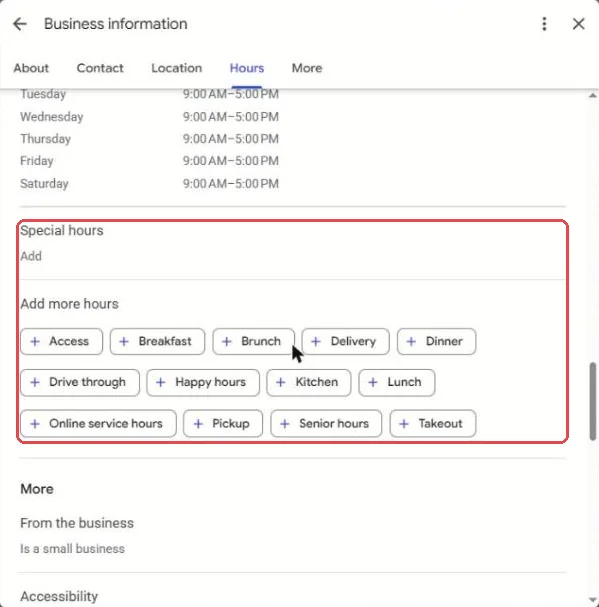
Closing for a while? Use Temporarily closed, not Permanently closed. Permanently closed is meant for businesses that are gone for good (Google’s page on marking closed).
9. Phone, website, chat and social links
- Phone: use a local number that rings at this location. You can add up to two more. If you use call tracking, keep your real number as one of them.
- Website: link the page for this location. If you have several locations, link each profile to its own location page, not the homepage.
- Social profiles: you can link one each of Facebook, Instagram, LinkedIn, Pinterest, TikTok, X and YouTube, in supported regions and categories (social links). Google may also add these itself, which happened to ours.
- Chat: Google’s old built-in chat was shut down in July 2024 (Google’s notice). In its place, verified profiles in supported regions can add a text message or WhatsApp contact option (set up chat). Only add it if someone will actually answer those texts.
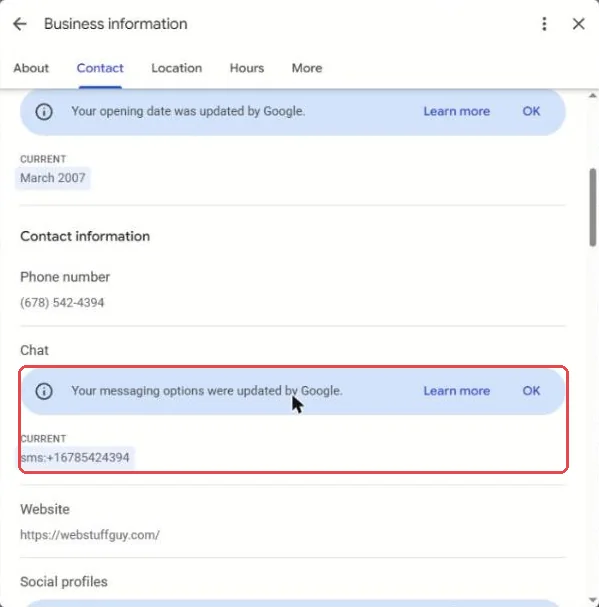
A newer setting lets you hide your phone number from the profile if you don’t want calls. It’s under the three-dot menu, then Business Profile settings, then Advanced settings (Google’s page). Most businesses should leave it showing.
10. Attributes
Attributes are the yes/no details: wheelchair access, Wi-Fi, “women-owned”, “veteran-owned”, “online appointments”, payment types, and for restaurants things like outdoor seating or dietary options. Which ones you see depends on your category and country (Google’s attributes page). Find them under Edit profile, then the More tab.
They take two minutes and they show up on your listing. As our own screenshot above shows, Google also fills them in when you don’t, and it can guess wrong. Go through every one and set it yourself.
11. Google Business Profile services and products: where most profiles stay half-empty
This is the section owners skip most, and we understand why. It looks like busywork. But your services list is one of the few places on the profile where you can describe, in your own words, everything you actually do.
How services work
Open Edit services. Your services are grouped under each of your categories. Google offers a set of suggested services based on your category: a plumber might see “Install faucet”. You tick the ones that apply (Google’s services page).
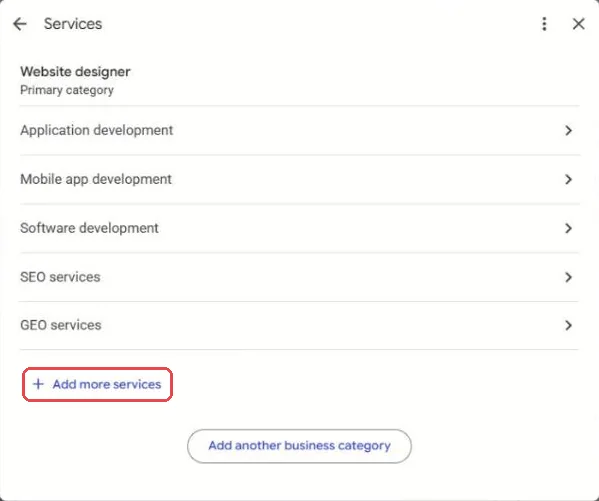
When the suggestions run out, add your own
Here’s what most owners never realize. Google’s suggested list is short and generic. Once you’ve ticked everything that applies, click Add more services and you’ll find Add custom service. From there you can type in anything else you offer, one at a time.
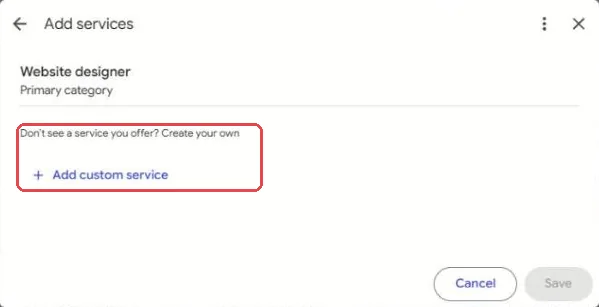
Each service, suggested or custom, has three fields:
- Service name: up to 120 characters. Use the plain words a customer would search: “Water heater replacement”, not “Hydro-Thermal Solutions”.
- Price: optional. No price, fixed, “from”, and so on.
- Service description: up to 300 characters. What it includes, who it’s for, how long it takes.
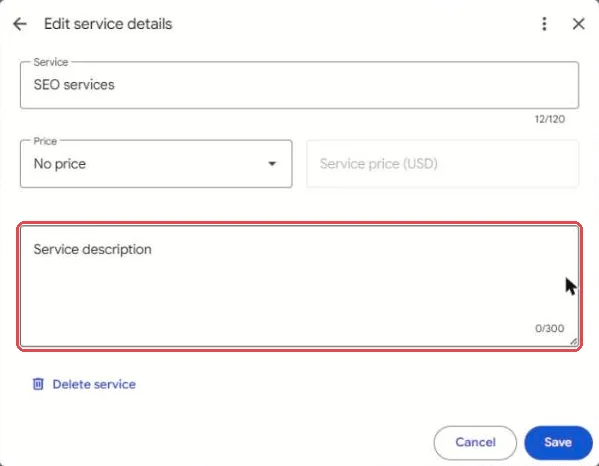
Google rejects custom services that break its policy automatically. Its help page specifically says to keep prices and phone numbers out of service names, along with profanity, gibberish and personal information. Put the price in the price field.
Keep the list current
Services are where “set it and forget it” does the most damage. Businesses add services and drop others all the time, but the profile still lists what they offered the year they set it up. Every time you add or retire something in real life, open this screen. A customer who calls about a service you stopped offering is a wasted call for both of you.
Products
Retailers, and anyone who sells packages, can also use the Products tab: a photo, name, category, price and description for each item (Google’s product editor page). Service businesses sometimes use it to showcase packages with a photo. Products have to follow Google’s shopping policies, and a violation can remove the whole catalog.
Thirty services with descriptions is a long evening. We build these out for clients and keep them current as the business changes.
Ask us to handle it12. Can AI fill this in for you, and is it safe?
Writing a description, thirty service descriptions and a stream of posts is exactly the kind of tedious writing AI tools are good at. So is it allowed?
Google offers AI itself. The Suggest description button writes your business description with AI (source). Google also lets owners of a single verified profile manage it by chatting with Gemini, its AI assistant: updating hours and contact details, drafting review replies and creating posts (source).
We found no Google policy against AI-written profile text. Google’s prohibited and restricted content policy is about what the content says, not who or what wrote it. The rules that matter:
- It has to be true. Misrepresenting what you offer is prohibited. AI tools are good at making up plausible services, credentials and claims. Delete anything that isn’t real.
- No keyword stuffing. If you ask an AI to “optimize for SEO”, it will often cram in city names and keywords. That reads as spam to customers and to Google.
- No prices or phone numbers in service names, and no promotions or prices in the business description.
- Photos are different. Google wants photos that “represent reality” with no significant alterations (source). Don’t use AI-generated images of your shop, team or work.
Our take: AI is a fine first-draft tool for text, as long as a person who knows the business reads every line before it goes live. A prompt like this works well:
“I run [business] in [city]. Here is a list of the services we actually offer: [list]. For each one, write a plain-English description under 300 characters for my Google Business Profile, saying what’s included and who it’s for. No prices, no phone numbers, no hype, no city names stuffed in. Don’t add any services that aren’t on my list.”
Then check each one against reality and paste them in one at a time.
13. Photos and videos
Photos help customers decide, and listings with real, current photos look like businesses that are open and cared for. Google’s photo and video page has the file requirements. Its photo tips cover what to shoot.
- Logo and cover photo. You can suggest a cover photo, but Google decides what shows first.
- Exterior: what the building and entrance look like from the street, so first-time visitors can find you. Our own panel prompted us to “Add exterior photo”.
- Interior, team and work: real people, real jobs, real results.
- Short videos of a walkthrough or a job in progress.
Skip stock photos and heavy filters. Add a few new photos every month or two instead of fifty once. A steady trickle shows the business is active.
Customers can add photos too, and some will be bad. You can report a customer photo that breaks Google’s policies, but you can’t delete it yourself. The best answer is plenty of good ones of your own.
14. Google Business Profile posts and offers
Posts are short updates that appear on your profile. They come in three kinds: updates (news, a recent job, a tip), offers (a deal with dates) and events (with start and end times). Google’s rules are on its posts page, and offers have their own manage offers page.
- Posts older than six months are archived unless you give them a date range, so a profile whose last post is from 2023 looks abandoned.
- You can schedule posts ahead of time.
- Don’t put a phone number in the post text. Google may reject it. Use the button options instead (“Call now”, “Learn more”, “Book”).
Update · Oct 2026 Industry trackers reported in October 2026 that Google moved the posts section higher up the local panel, which makes posts more visible than they used to be. One post every week or two is a realistic goal.
15. Google Business Profile reviews
Reviews feed directly into how prominent Google considers you. Google’s own local ranking page names review count and rating as part of “prominence”. They also decide whether a customer calls you or the next business on the list.
Your Google review link and QR code
Click Ask for reviews in the panel. Google gives you a short review link and a QR code you can put on invoices, receipts, email signatures or a sign at the counter (Google’s page).
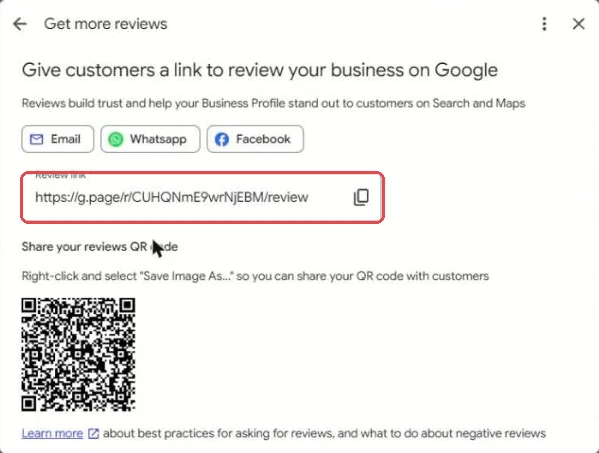
What Google prohibits (policy):
- Offering anything in return for a review: discounts, gifts, entries into a drawing.
- Review gating: asking only happy customers, or screening people first and sending only the satisfied ones to Google.
- Discouraging negative reviews.
- Setting staff review quotas, or asking customers to name a specific employee in their review. Google’s policy page now lists both.
Ask everyone, the same way, as part of how you finish a job.
Replying
Reply to reviews, good and bad (Google’s page). For a good one, a genuine thank-you that mentions the job is plenty. For a bad one: stay calm, don’t share any private details about the customer, acknowledge the problem, and offer to sort it out offline. Your reply is written for the next hundred people who read it, not the reviewer.
Reporting fake or abusive reviews
You can report a review that breaks Google’s policies: spam, conflict of interest, off-topic, hateful and so on. Google won’t remove one just because it’s negative or you disagree with it (report a review). If someone threatens bad reviews unless you pay them, Google has a separate review extortion report.
Want a steady review routine, with replies written for you? That’s our online reputation management.
How it works16. Performance (formerly Insights): what your numbers mean
Click Performance to see how many people viewed your profile, and how many called, asked for directions, clicked to your website or booked (Google’s performance page). Data is only available for verified profiles.
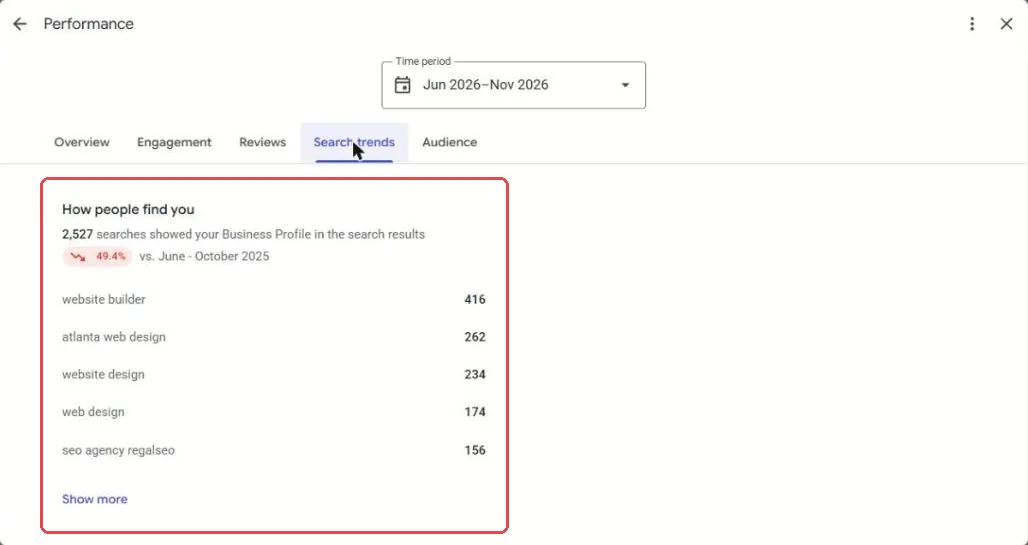
The tab worth your time is Search trends. It lists the words people typed before your profile appeared. Use it to:
- spot services people look for that aren’t in your services list yet
- see whether people find you by your name (they already know you) or by what you do (new customers)
- notice searches you don’t want, which can hint that your categories are off
Compare the same months year over year rather than month to month. Most businesses are seasonal, and Google’s reporting sometimes has gaps.
These numbers cover your profile. For your website, see our guide to SEO reporting and how to tell if your SEO is working.
17. Notification emails: why you never hear from Google
A lot of owners, and plenty of agencies, say they never get emails from Google about their profile. Sometimes that’s a setting. Open the three-dot menu in the panel and choose Notifications.
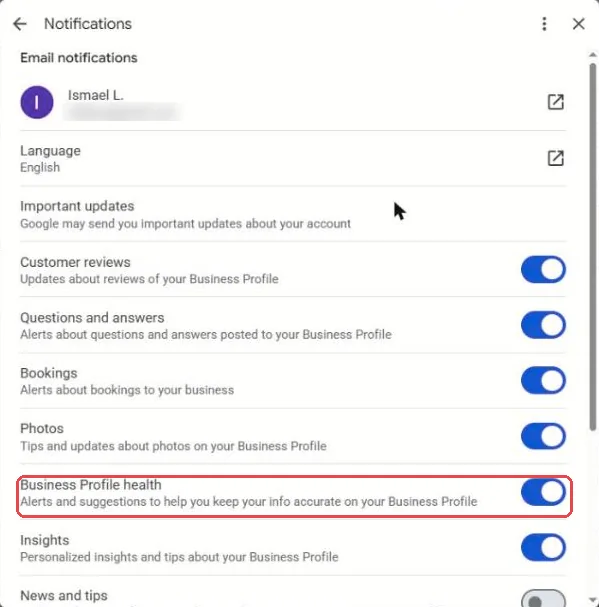
You’ll find toggles for customer reviews, bookings, photos, Business Profile health (alerts that help keep your info accurate), insights, posts, reminders and more. We’d turn on at least reviews and Business Profile health.
Three things to know:
- The settings are per person. They go to the email of each owner or manager’s own Google account, so if the profile is tied to an old address, so are the alerts.
- There’s no switch for “your edit wasn’t approved”. We couldn’t find one in the settings or in Google’s help pages. When you make an edit, sign back in a day or two later and check that it actually went live.
- Check your Gmail tabs. Google’s profile emails often land in Updates or Promotions, not the main inbox.
18. How to add a user to your Google Business Profile, and keep control of it
This is the question we’re asked most: how do I add someone to my profile? Here’s how, along with why it matters.
The roles
From Google’s owners and managers page:
- Primary owner: one per profile. Full control.
- Owner: you can have several. Full control, including adding and removing people and deleting the profile.
- Manager: can edit almost everything (info, photos, posts, reviews) but can’t add or remove users or delete the profile. This is the right role for an employee or an agency.
How to add a user (owner or manager)
- Search your business name on Google while signed in, so the “Your business on Google” panel appears.
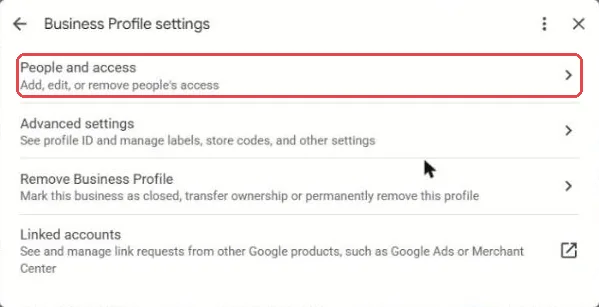
- Click the three-dot menu (next to Profile Strength) and choose Business Profile settings.
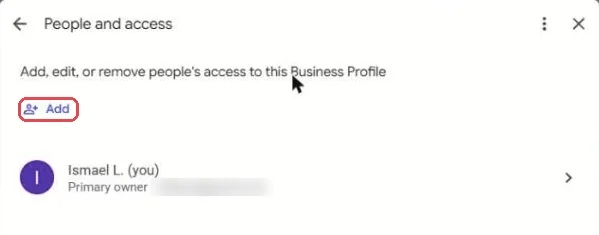
- Click People and access.
- Click Add, enter the person’s email address, choose Owner or Manager under Access, and click Invite.
- They get an email invitation. Once they accept, they’re in right away, and you get an email saying so.
Note that a newly added owner or manager has to wait 7 days before they can do a few sensitive things: delete the profile, remove other users or transfer primary ownership. Ordinary edits work right away.
Rules we give every client
- You, the business owner, should be the primary owner, on a Google account you’ll still have in ten years. Not an employee’s personal Gmail, and not your agency’s account. Give agencies Manager access.
- Have a second owner. A business partner, a spouse, a trusted manager. If you lose access to your account, someone can still get in.
- Remove people who leave. Former employees and old agencies should come off the list the day they go.
If you’re locked out because someone else owns the profile, Google has a request ownership process. And if a stranger ever requests ownership of yours, read our post on ownership request scams before you do anything else.
Google Business Profile verification, including video
New profiles, and existing ones after big changes like a new name, address or category, have to be verified. Google decides which methods you’re offered. Increasingly that’s a video recording: a continuous clip, shot on your phone, showing your street, your signage matching the profile name, and proof that you run the place, such as opening up, your tools, or a branded vehicle for service-area businesses (verify your business, video verification). Read Google’s checklist before you start recording, because a clip that misses an item can be rejected and you’ll have to start over.
If your Google Business Profile is suspended
Don’t keep editing it, and don’t create a new one. Read Google’s fix a suspended profile page, correct whatever breaks the guidelines, and submit one appeal with proof such as a business license, utility bill or photos of your signage.
Locked out, suspended, or stuck in verification? We can help you sort it out.
Get help19. What’s gone and what’s new (2024–2026)
If an old tutorial sends you looking for a button that isn’t there, this is probably why.
Gone
- Free Business Profile websites (the “yourbusiness.business.site” pages) were shut down in 2024.
- Built-in chat and call history ended on July 31, 2024 (Google’s notice). Text and WhatsApp options have since taken their place in some regions.
- Questions & Answers on Maps has been phased out since late 2025, with an AI “Ask” feature that answers questions from your profile, reviews and website. That makes accurate services, attributes and descriptions more important, because they’re what the AI reads.
New, or newly important
- AI help inside the profile: suggested descriptions, and managing the profile through Gemini (see section 12).
- Text and WhatsApp contact options (see section 9).
- Hide your phone number, under Advanced settings.
- Tighter review rules on staff quotas and asking customers to name employees (see section 15).
- Business Home: in late 2026 Google began testing a combined dashboard for your profile, ads and other Google tools, as an invite-only beta in the US and UK. If you haven’t been invited, everything in this guide still applies.
20. Your Google Business Profile optimization checklist: 15 minutes a month
If you take one thing from this guide, make it this. Put a recurring reminder on your calendar for the first Monday of each month:
- Look for “updated by Google” notices in every tab of Edit profile, and fix anything wrong.
- Check hours, and add special hours for any holiday coming up.
- Review your services. Add anything new, remove anything you’ve stopped offering.
- Reply to every new review.
- Add a post and two or three new photos.
- Look at Search trends for searches you aren’t covering.
- Check People and access. Is everyone on the list still supposed to be there?
That’s it. Fifteen minutes a month puts you ahead of most of the businesses you’re competing with on the map, because most of them filled their profile out once and never came back.
Would you rather it simply got done? Our Google Business Profile optimization and management service covers setup, services, posts, reviews and the monthly checkup, for businesses anywhere in the US. It’s all done remotely.
See the service21. Quick answers
Why isn’t my Google Business Profile showing up?
The usual reasons: the profile isn’t verified yet, it’s been suspended or has a pending edit under review, the searcher is too far away, or your categories and services don’t match what they searched. Search your exact business name first. If it appears for that but not for what you do, it’s a relevance or prominence problem, not a missing listing.
How do I find my Google Business Profile?
Sign in to the Google account that manages it and search your business name on Google, or go to business.google.com. If you can’t see the “Your business on Google” panel, that account isn’t an owner or manager. See adding a user, or Google’s request ownership process.
Can I give someone access without sharing my password?
Yes, and you should. Add them as a manager under People and access (steps above). Never hand out the password to the Google account that owns the profile.
How often should I update my Google Business Profile?
Check it monthly with the checklist above, and update it the same day anything changes in real life: hours, services, phone number, address.
Changes to this guide
- November 14, 2026: first published.